Download Admire AI
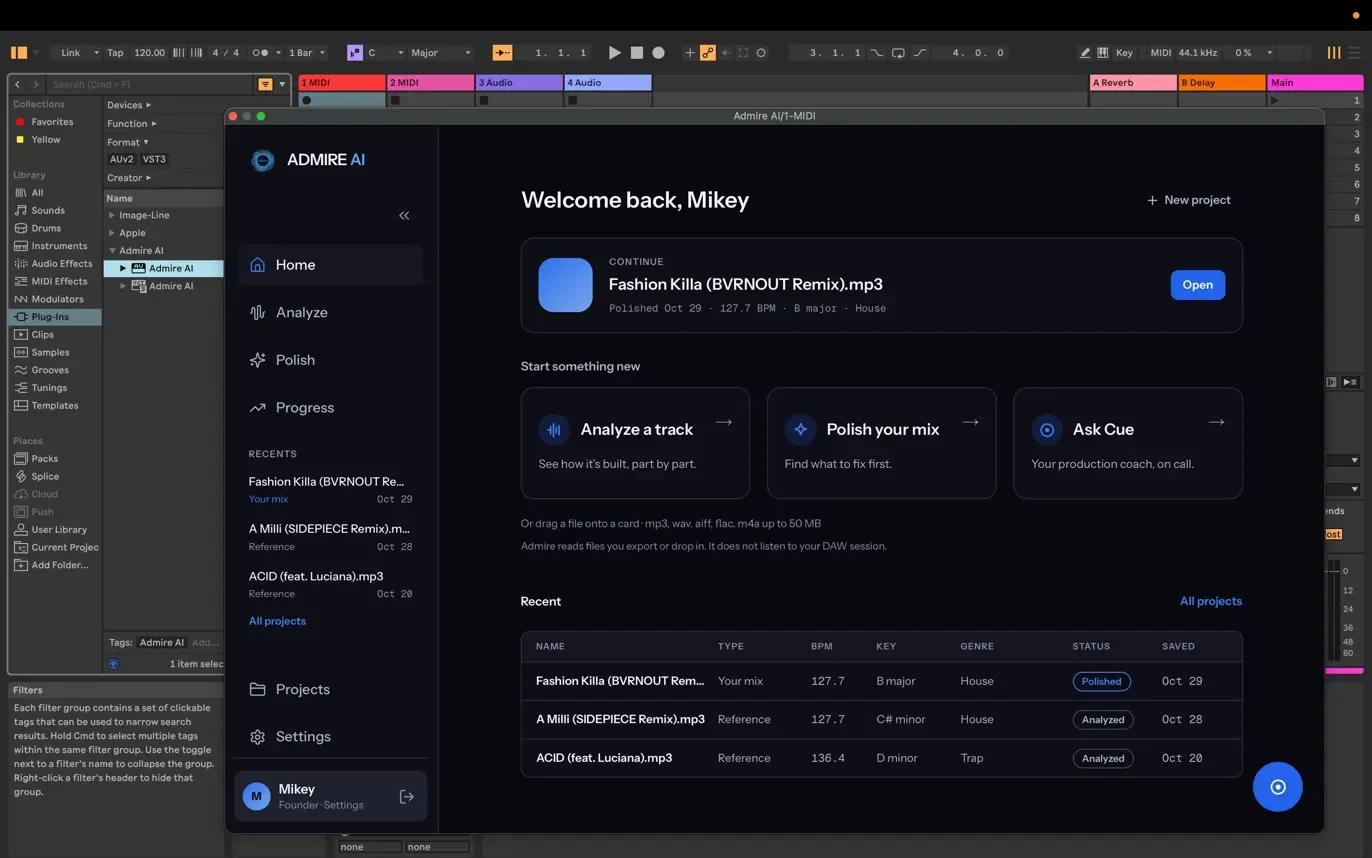
Admire runs on a track in your DAW. Install the plugin, drop it on a track and sign in. It's the same studio and the same account as the website.
- Signed and notarized by Apple
- Signed Windows installer
- Works in VST3 and AU hosts
- v0.1.4
Before you install
System requirements
Plugin on Mac
- macOS 13 or later
- Apple Silicon and Intel (Universal build)
- VST3 and Audio Unit
- Works in DAWs that load VST3 or Audio Unit plugins, such as Ableton Live, FL Studio and Logic Pro.
- Signed and notarized by Apple
- Version 0.1.4
Plugin on Windows
- Windows 10 or 11, 64-bit
- VST3, for DAWs that load VST3 plugins, such as FL Studio and Ableton Live
- Microsoft Edge WebView2 Runtime. It is built into Windows 11 and most Windows 10 PCs, and the installer tells you if yours is missing it.
- Signed installer, Publisher: Michael Maron
- Version 0.1.4
Track uploads (browser and plugin)
- MP3, WAV, AIFF, FLAC or M4A
- Up to 50 MB per file
- Analysis covers the first 10 minutes of a track
Mac
Install on Mac
- Download Admire-AI-0.1.4.pkg.
- Open it and click through the installer. It's signed and notarized by Apple, so macOS will not warn you. Leave both formats, VST3 and Audio Unit, selected unless you only want one.
- The installer puts Admire AI in /Library/Audio/Plug-Ins (VST3 and Audio Unit).
- Rescan plugins in your DAW:
- Ableton Live: Settings > Plug-ins, turn on Use VST3 Plug-In System Folders (and Audio Units), then click Rescan.
- Logic Pro: open Logic, it scans Audio Units on launch. If Admire AI is missing, Logic Pro > Settings > Plug-in Manager > Reset & Rescan Selection.
- FL Studio: Options > Manage plugins > Find more plugins.
- Drop Admire AI on a track and sign in with the same account you use in the browser. The plugin keeps its own sign-in, so it asks the first time even if you're signed in on the website.
To uninstall: there's no uninstaller. Drag these two to the Trash:
- /Library/Audio/Plug-Ins/VST3/Admire AI.vst3
- /Library/Audio/Plug-Ins/Components/Admire AI.component
Then, in Terminal, tell macOS to forget the install so a future one starts clean:
- sudo pkgutil --forget com.admireaisound.plugin.vst3
- sudo pkgutil --forget com.admireaisound.plugin.au
Windows
Install on Windows
- Download Admire-AI-0.1.4-Windows-Setup.exe.
- Because the installer is new, Edge may say it "isn't commonly downloaded". The warning box shows Publisher: Michael Maron, the person behind Admire AI. Click the ... on the download, then Keep. Open the Delete dropdown and click Keep anyway.
- Open the installer. You might also see Windows SmartScreen say "Windows protected your PC". If you do, click More info, then Run anyway.
- Windows asks for administrator permission and shows Verified publisher: Michael Maron. Click Yes.
- The installer puts Admire AI in the system VST3 folder, C:\Program Files\Common Files\VST3. If your PC is missing the WebView2 Runtime, it says so at the end and opens Microsoft's download page.
- Rescan plugins in your DAW:
- FL Studio: Options > Manage plugins > Find more plugins.
- Ableton Live: Settings > Plug-ins, turn on VST3 plug-in system folders, then click Rescan.
- Drop Admire AI on a track and sign in with the same account you use in the browser.
To uninstall: Windows Settings > Apps > Installed apps > Admire AI (VST3 plugin) > Uninstall.